Security Policies
OpenDepot Workshop provides a Security Policies view for managing ScanPolicy rules and exemptions. Open it at /security-policies to review the policies that apply to resources in a selected namespace.
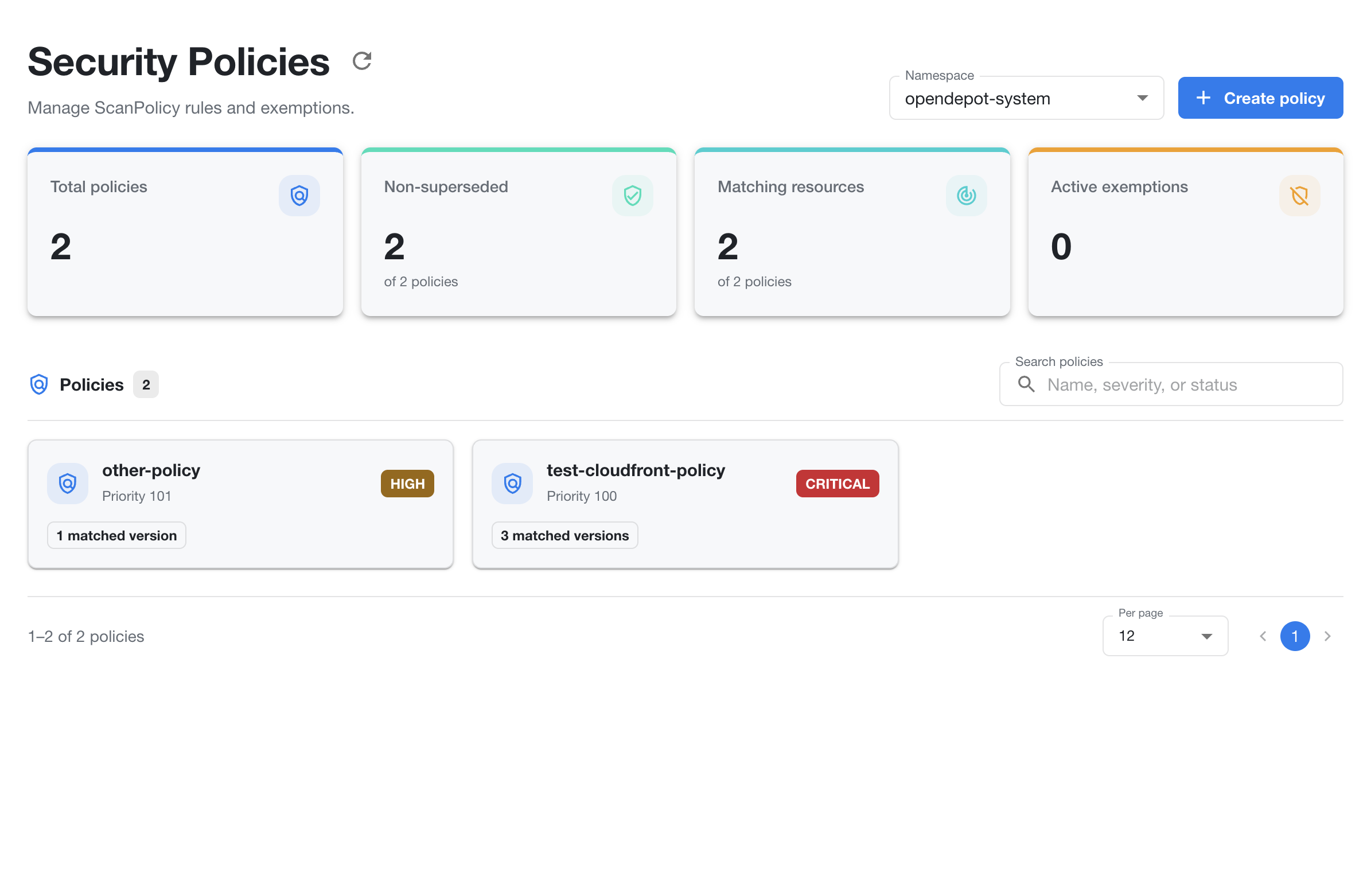
Keep policies in source control
Creating policies in OpenDepot Workshop is provided for convenience, such as when you need to react to a threat immediately. Always copy the generated YAML and commit it to source control. OpenDepot Workshop assumes a GitOps workflow, where Git is the audit trail; OpenDepot does not retain this policy history today.
Policy overview
The page includes summary cards for:
- Total policies — all policies in the selected namespace.
- Non-superseded — policies that are currently active in policy evaluation.
- Matching resources — resources matched by the policies.
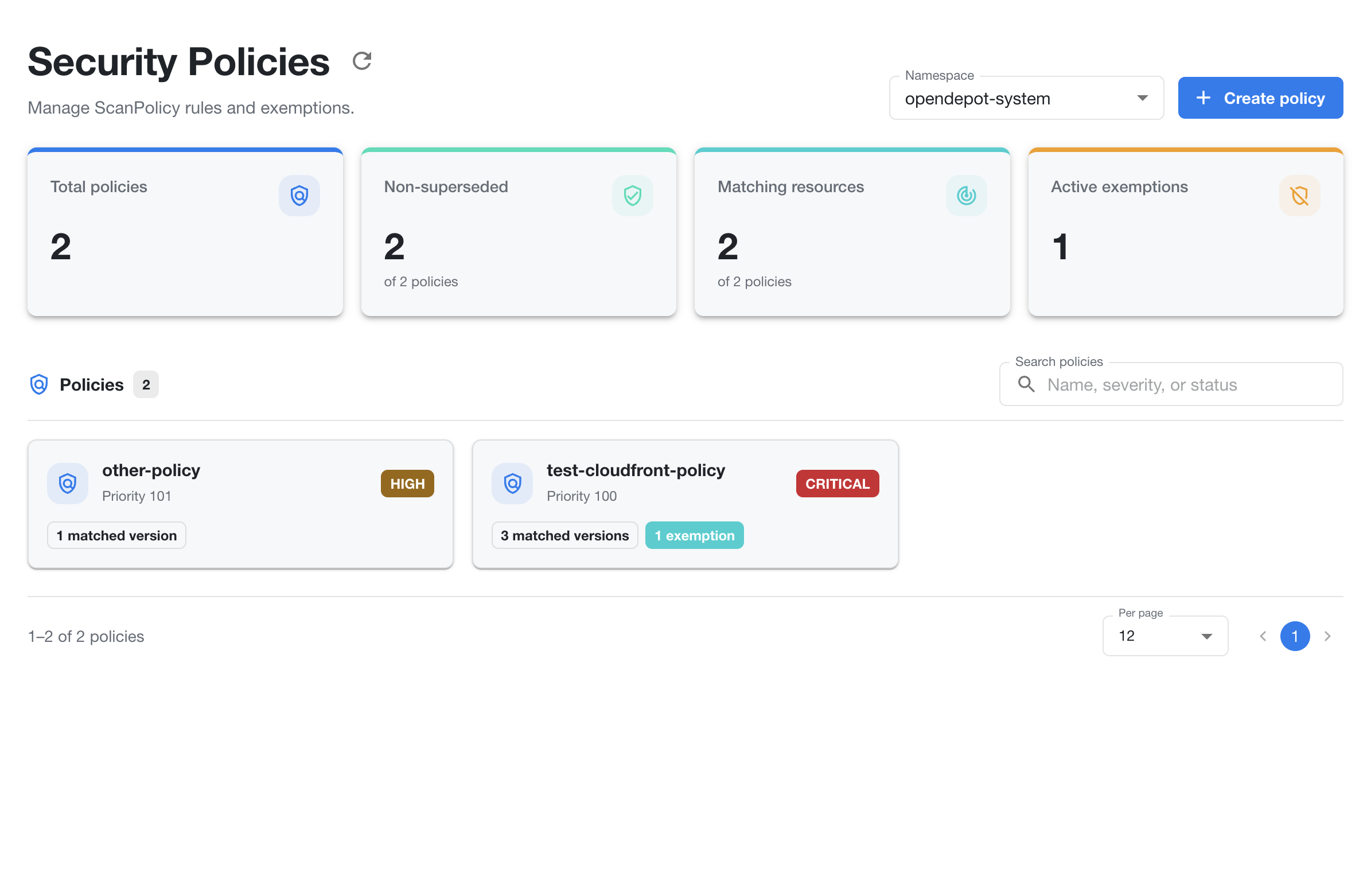
- Active exemptions — current exemptions from policy findings.
The policy list shows each policy's name, priority, severity threshold, and number of matched versions. Select a policy to inspect its rules, matches, and exemptions.
Find and create policies
Use the namespace selector to change the scope of the policy list. Use Search policies to filter by policy name, severity, or status.
Select Create policy to define a new ScanPolicy in the selected namespace.
Create a policy
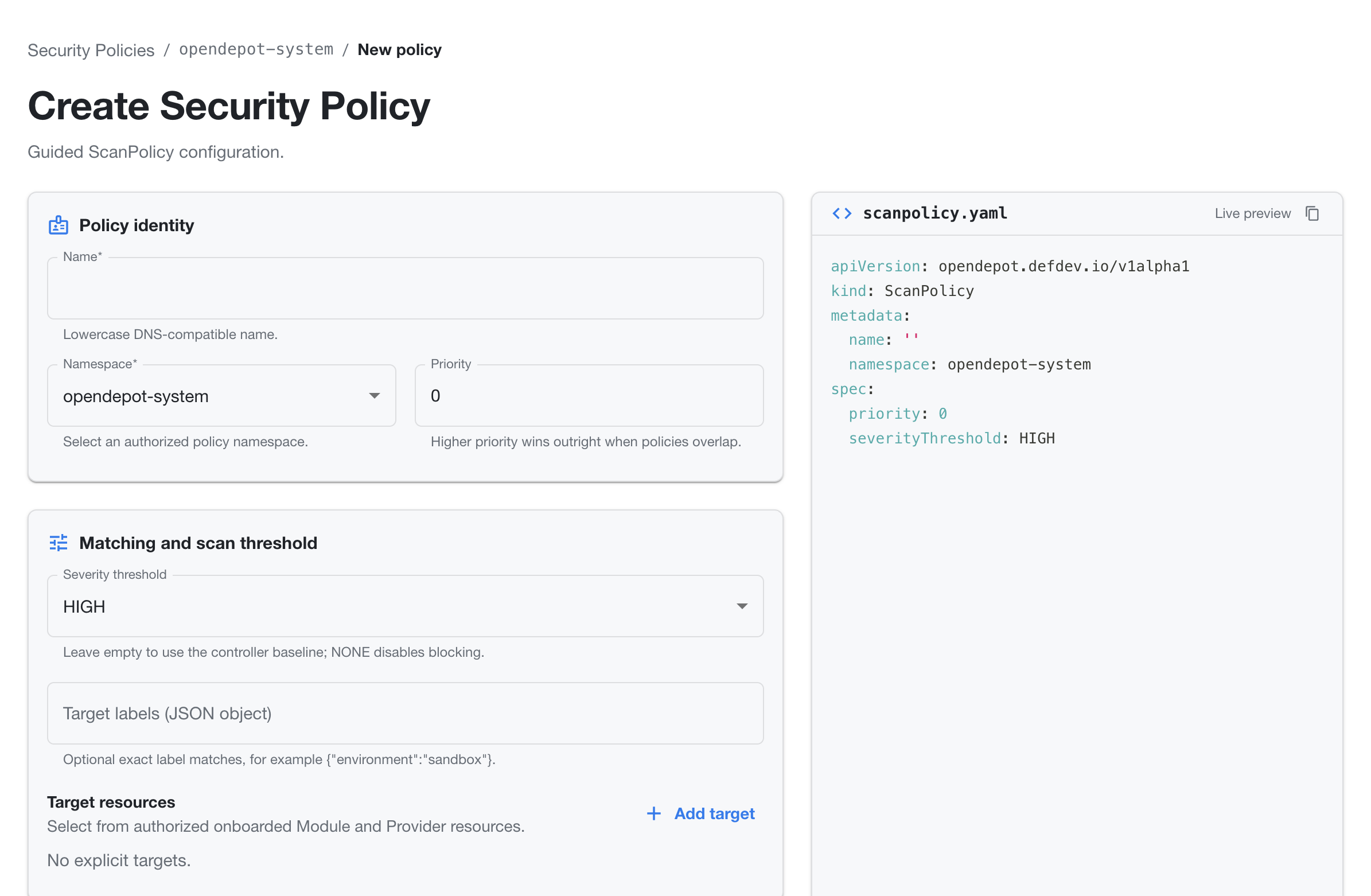
The guided form creates a namespaced ScanPolicy and updates a live YAML preview as you work.
Define policy identity
Enter a lowercase DNS-compatible Name, select an authorized Namespace, and optionally set a numeric Priority. When policies overlap, the policy with the higher priority wins outright.
Set matching and scan behavior
Choose a Severity threshold to control which findings block matching resources. Leave the value empty to use the controller baseline, or choose NONE to disable blocking for the policy.
Use Target labels to restrict matching to resources with exact label pairs. Enter the labels as a JSON object, for example:
You can also add explicit Target resources. The form lets you select from authorized onboarded Module and Provider resources. When no explicit targets are configured, the policy relies on its other matching criteria.
Add finding exemptions
Use Add exemption to exempt a finding from the policy. Every exemption must include a reason. Leave its expiry empty for an indefinite exemption.
Each exemption can be narrowed with these fields:
- Vulnerability IDs — enter one or more vulnerability identifiers, such as
CVE-2026-0001oraws-0057. Use*to match any vulnerability ID. - Package names — enter one or more package names, such as
stdliborgolang.org/x/net. Use*to match any package. - Severities — select the finding severity or leave the filter at
All. - Scan types — select the scan type or leave the filter at
All. - Reason — required documentation for why the finding is exempted.
- Expires — optional date after which the exemption no longer applies.
Use the trash button to remove an exemption before saving. The live YAML preview adds each configured exemption under spec.exemptions.
Validate and create
Review the generated scanpolicy.yaml in the live preview. Use the copy button to copy the manifest, Validate policy to check the configuration, or Create policy to submit it. Use Cancel to return to the policy list without creating a resource.
Review active exemptions
After you create a policy with an exemption, the Security Policies page shows the active exemption in the summary card and on the policy card. The exemption count is separate from matched-version counts. Open the policy to review the finding filters, reason, and expiry date.
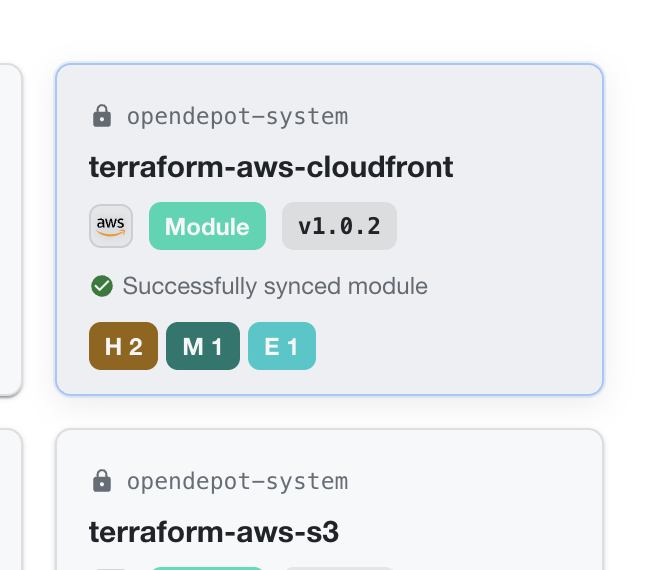
OpenDepot Workshop also reflects active exemptions on affected resource cards. The card keeps its normal sync status and finding-severity badges, and adds an E badge for exempted findings. For example, H 2, M 1, and E 1 indicate two high-severity findings, one medium-severity finding, and one exempted finding.
On a module's Scan Findings section, an exempted finding remains in the findings table with its original severity. Its Resolution column displays an Exempted by <policy-name> badge, while findings without exemptions keep the normal unresolved marker.
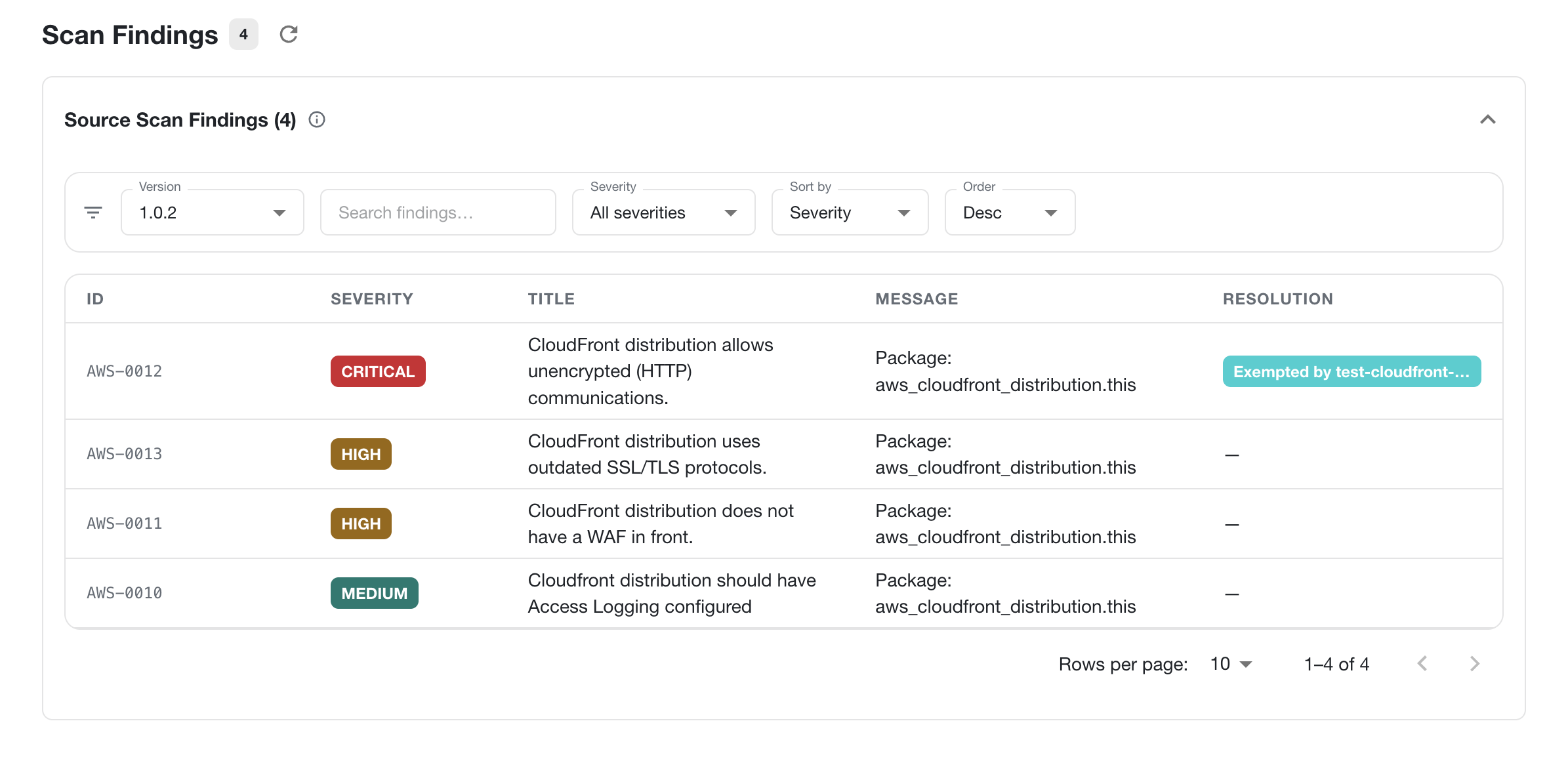
The findings count still includes the displayed finding. Use the version selector, search, severity filter, and sorting controls to inspect the findings for a specific module version.
Blocked versions
After you create a policy with a blocking threshold, a blocked version appears in the module's Versions section with a warning that some versions are out of sync. The affected version's sync status reports the policy violation, including the blocking severity, vulnerability ID, and resource location.
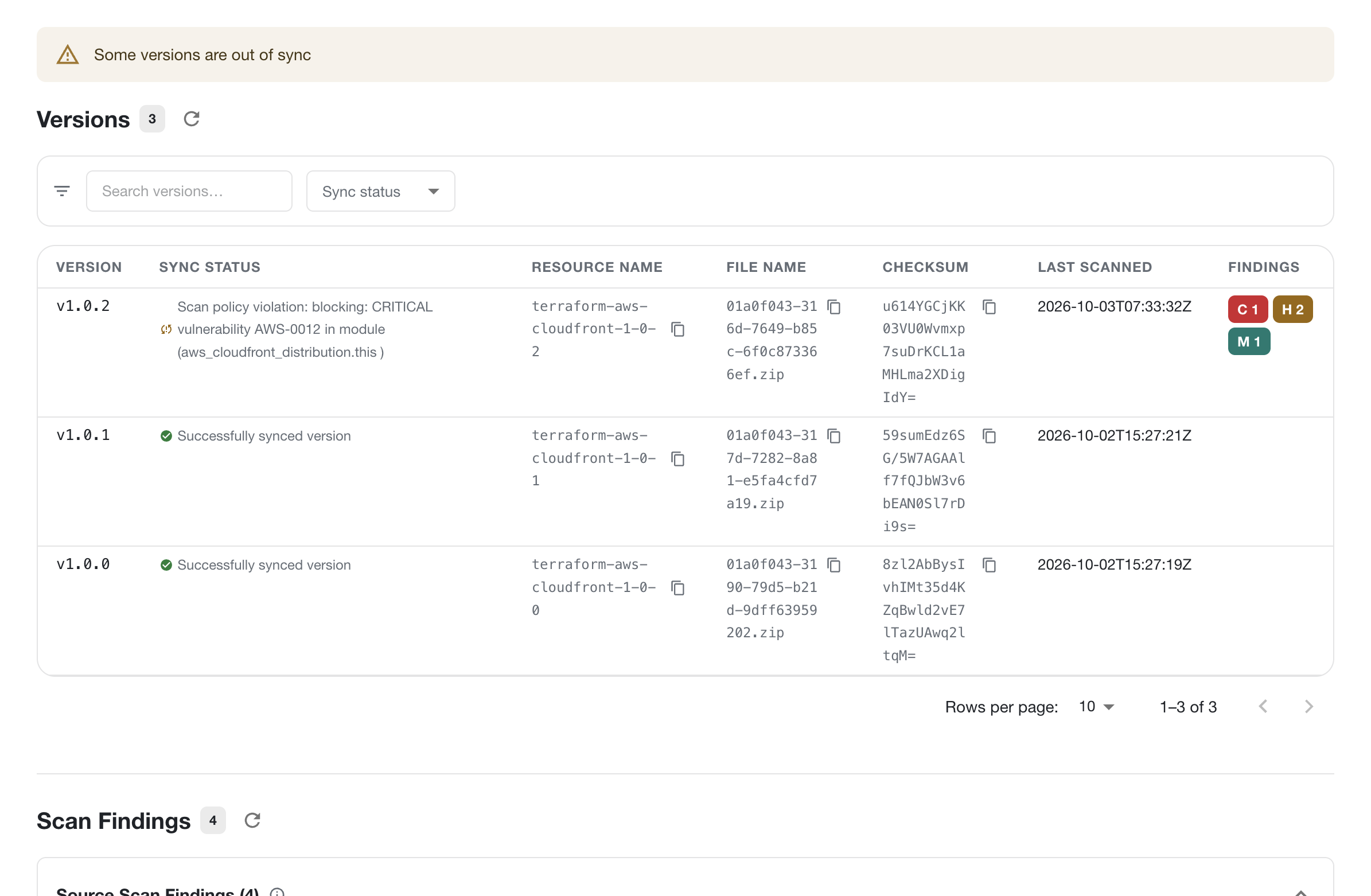
The blocked version remains listed with its findings badges, while unaffected versions can continue to show Successfully synced version. This differs from an exemption: an exempted finding is marked in the Scan Findings Resolution column, whereas a blocked version reports the policy violation in its Sync Status column.
Superseded policies
When policies overlap, the higher-priority policy wins outright. The lower- priority policy remains visible in the list, but it is marked Superseded by <policy-name> so users can see which policy takes precedence.
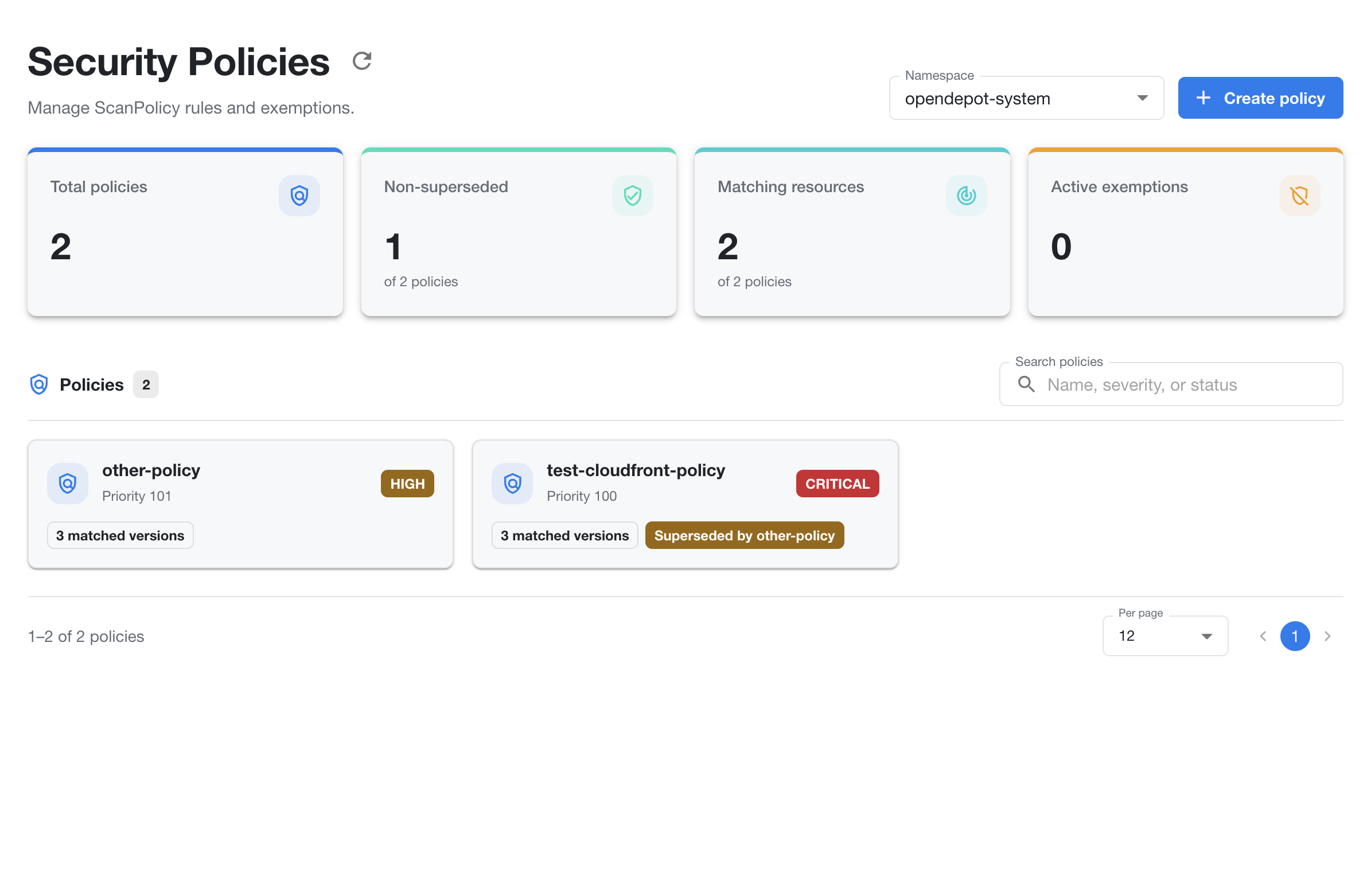
The summary separates Total policies from Non-superseded policies. In the example above, two policies exist but only one is non-superseded. A superseded policy can still be opened to review its configuration and matching resources; its status explains why it is not the effective policy when the rules overlap.